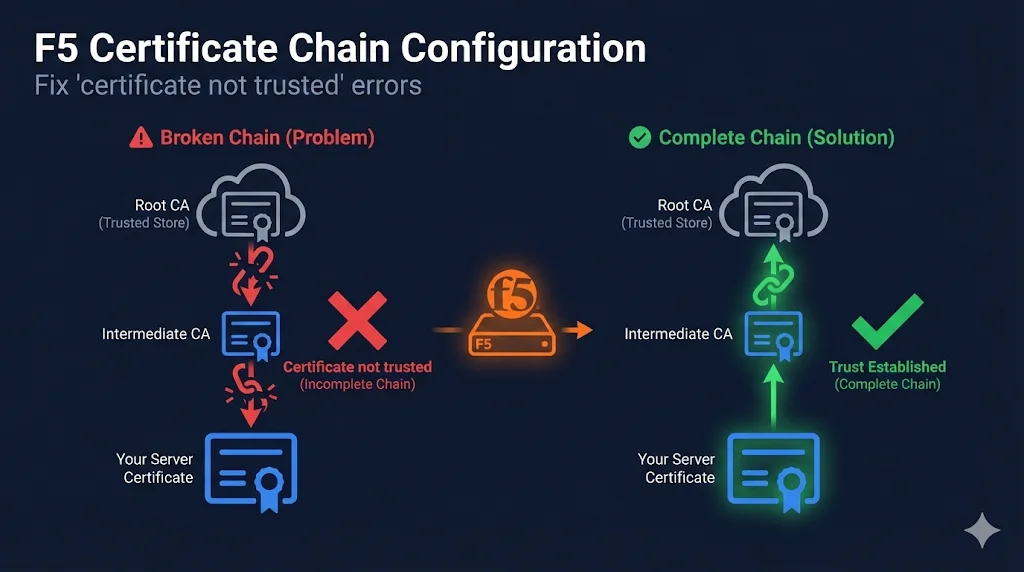
The 30-Second Version
The problem: Your site works in Chrome but fails on mobile apps, older clients, or API integrations.
The cause: Missing intermediate certificate chain.
The fix: Import intermediate cert → Add to Client SSL Profile → Chain field in Certificate Key Chain.
F5's gotcha: If you specify the wrong chain, F5 silently sends NO chain at all.
What is K13302?
This guide is the plain-English version of F5 Knowledge Base article K13302 — the official reference for configuring certificate chains on BIG-IP. K13302 is dense and assumes familiarity with F5 terminology. This guide demystifies it: plain language, copy-paste commands, done.
Watch the Video
Why Certificate Chains Matter
The Trust Problem
Browsers and clients don't automatically trust your certificate. They need a chain of trust connecting your certificate back to a root CA they already trust.
┌─────────────────────────────────────────┐
│         Root CA Certificate             │  ← Pre-installed in browsers/OS
│   (DigiCert, Sectigo, Let's Encrypt)    │     NOT sent by your server
└─────────────────────┬───────────────────┘
                      │ Signs
                      ▼
┌─────────────────────────────────────────┐
│     Intermediate CA Certificate         │  ← MUST be sent by your server
│                                         │     This is "the chain"
└─────────────────────┬───────────────────┘
                      │ Signs
                      ▼
┌─────────────────────────────────────────┐
│      Your Server Certificate            │  ← Sent by your server
│        (www.example.com)                │
└─────────────────────────────────────────┘
Why Some Clients Work Without the Chain
Modern browsers (Chrome, Firefox, Edge, Safari) will automatically fetch missing intermediate certificates using AIA (Authority Information Access) URLs embedded in your certificate.
But these clients DON'T auto-fetch:
This is why your site "works in Chrome" but breaks everywhere else.
How F5 Handles Chains Differently
If you're coming from Apache or Nginx, F5's approach to certificate chains will feel unfamiliar. Most web servers let you bundle everything into one file. F5 doesn't — and that's where K13302 errors come from.
Apache / Nginx
- Bundle server cert + intermediates in one file
SSLCertificateChainFileor inline inssl_certificate- Server assembles the chain automatically
F5 BIG-IP
- Client SSL profile has separate fields: Certificate, Key, and Chain
- Chain field needs its own bundle file — intermediates only
- F5 will NOT assemble the chain for you — you must do it manually
This is the core of K13302: F5 treats the chain as a separate object that you must explicitly build, import, and attach. If you skip any step, the handshake fails for clients that don't have the intermediate cached.
Where to Configure Chain in F5
The Right Place:
Client SSL Profile → Certificate Key Chain → Chain
NOT these (common mistakes):
- Trusted Certificate Authorities (that's for client cert validation)
- Client Certificate Constrained Delegation
- A separate Server SSL profile
Local Traffic → Profiles → SSL → Client → [Your Profile]
┌─────────────────────────────────────────────────┐
│ Certificate Key Chain                           │
├─────────────────────────────────────────────────┤
│ Certificate: www.example.com_2025          [▼]  │ ← Your cert
│ Key:         www.example.com_2025          [▼]  │ ← Your key
│ Chain:       DigiCert_Intermediate         [▼]  │ ← CHAIN GOES HERE
└─────────────────────────────────────────────────┘
Step-by-Step Chain Configuration
Step 1: Get Your Intermediate Certificate
Download from your CA's website:
| CA | Intermediate Certificates Location |
|---|---|
| DigiCert | digicert.com/kb/digicert-root-certificates.htm |
| Sectigo | sectigo.com/knowledge-base/detail/Sectigo-Intermediate-Certificates |
| Let's Encrypt | letsencrypt.org/certificates/ |
| GlobalSign | support.globalsign.com/ca-certificates |
| GoDaddy | certs.godaddy.com/repository |
Step 2: Import the Intermediate Certificate
Path: System → Certificate Management → Traffic Certificate Management → SSL Certificate List → Import
- Click Import
- Import Type:
Certificate(NOT Key) - Certificate Name:
DigiCert_Intermediate_2025(or similar) - Certificate Source: Upload or paste PEM content
- Click Import
Step 3: Add Chain to Client SSL Profile
Path: Local Traffic → Profiles → SSL → Client → [Your Profile]
- Select your Client SSL profile
- Under Certificate Key Chain, click on your existing entry (or Add new)
- In the Chain dropdown, select your imported intermediate certificate
- Click Update or Finished
Step 4: Verify Configuration
# Check that chain is being sent (should return 2 or more)
openssl s_client -connect your-vip:443 -servername your-domain.com 2>/dev/null | \
  grep -c "BEGIN CERTIFICATE"
# Expected output: 2 (or 3 if you have two intermediates)
# If output is 1 → chain is NOT being sent

# See the full chain — look for your cert AND the intermediate(s)
openssl s_client -connect your-vip:443 -servername your-domain.com -showcerts
# Expected output:
# Certificate chain
#  0 s:CN = www.example.com
#    i:CN = DigiCert SHA2 Extended Validation Server CA
#  1 s:CN = DigiCert SHA2 Extended Validation Server CA
#    i:CN = DigiCert High Assurance EV Root CA
For more verification methods (SSL Labs, chain checker tools), see the Verifying Your Chain section below.
F5's Silent Failure Mode
Critical Warning
If you specify a chain certificate that doesn't match your server certificate's issuer, F5 will silently send no chain at all.
How This Happens
- You had a DigiCert cert with DigiCert intermediate
- You renewed with Sectigo
- You updated the certificate but left the old DigiCert chain
- F5 sees the mismatch and sends nothing
- Chrome works (auto-fetches), mobile apps break
Detection
# Count certificates returned (should be 2+)
echo | openssl s_client -connect your-vip:443 -servername domain.com 2>/dev/null | \
  grep -c "BEGIN CERTIFICATE"

# If result is 1, your chain isn't being sent!
Common Causes
| Cause | What Happened | Fix |
|---|---|---|
| CA changed intermediate | CA updated their chain (common!) | Download fresh intermediate from CA |
| Renewed with different CA | Switched from DigiCert to Sectigo | Import new CA's intermediate |
| Wrong chain selected | Typo or wrong dropdown selection | Verify Chain matches certificate issuer |
| Chain bundle corrupted | Truncated file or encoding issue | Re-download from CA |
Multiple Intermediate Certificates
Some CAs have a chain of multiple intermediates:
Root CA
  └── Intermediate CA 1
        └── Intermediate CA 2
              └── Your Certificate
Creating a Bundle
F5's Chain field accepts a single certificate OR a bundle. For multiple intermediates:
# Order: Your issuer first, then the next level up
cat intermediate_issuer.crt intermediate_root.crt > chain-bundle.crt

# Verify the bundle
openssl crl2pkcs7 -nocrl -certfile chain-bundle.crt | \
  openssl pkcs7 -print_certs -noout
Import the Bundle
- Import the bundle file as a single "certificate" in F5
- Select the bundle in the Chain field
Verifying Your Chain
Method 1: OpenSSL Command Line
# Full chain verification
openssl s_client -connect your-vip:443 -servername domain.com -showcerts

# You should see output like:
# Certificate chain
#  0 s:CN = www.example.com
#    i:CN = DigiCert SHA2 Extended Validation Server CA
#  1 s:CN = DigiCert SHA2 Extended Validation Server CA
#    i:CN = DigiCert High Assurance EV Root CA

# Verify chain is valid
openssl s_client -connect your-vip:443 -servername domain.com -verify_return_error
Method 2: SSL Labs
- Go to ssllabs.com/ssltest
- Enter your domain
- Look for Chain issues section
- Should show: "Chain issues: None"
Method 3: Certificate Chain Checker Tools
- • whatsmychaincert.com - Will show missing intermediates
- • Chain Builder Demo - Interactive demo to build and validate certificate chains
- • CA Hierarchy Guide - Understand root CAs, intermediate CAs, and trust chains
Troubleshooting Chain Issues
Problem: "Certificate not trusted" on mobile/API
Diagnosis:
# Check certificate count
openssl s_client -connect your-vip:443 -servername domain.com 2>/dev/null | \
  grep -c "BEGIN CERTIFICATE"
# If result is 1, chain is missing
Fix: Add intermediate certificate to Chain field in Client SSL profile.
Problem: Chain configured but still not sent
Diagnosis:
# Check if chain matches your certificate's issuer
openssl x509 -in your-cert.crt -noout -issuer
# Output: issuer=CN = DigiCert SHA2 Extended Validation Server CA

# Verify your chain certificate matches
openssl x509 -in your-chain.crt -noout -subject
# Output should match the issuer above
Fix: Download correct intermediate from CA that matches your certificate's issuer.
Problem: SSL Labs shows "Extra download"
This means the chain is incomplete but browsers can auto-fetch.
Fix: Add the missing intermediate. SSL Labs tells you exactly which one is missing.
Problem: SSL Labs shows "Contains anchor"
This means you're sending the root CA certificate (unnecessary).
Fix: Remove root CA from your chain bundle. Only include intermediates.
Common Mistakes (K13302 Quick Reference)
| Mistake | What Happens | Fix |
|---|---|---|
| Server cert included in chain bundle | Duplicate cert sent; some clients reject | Chain file = intermediates only |
| Root CA included in chain | Wastes bandwidth; some clients reject | Never include root — only intermediates |
| Wrong certificate order | Chain validation fails on strict clients | Order: issuing intermediate first, then next level up |
| Chain not saved after edit | Change lost on next config sync or reboot | Run tmsh save sys config |
| Wrong import type (key vs certificate) | Chain doesn't appear in dropdown | Import as Certificate, not Key |
Chain Configuration - tmsh Commands
# View current chain configuration
tmsh list ltm profile client-ssl my-profile cert-key-chain

# Update chain in existing profile
tmsh modify ltm profile client-ssl my-profile \
  cert-key-chain replace-all-with { \
    entry1 { \
      cert my-certificate \
      key my-key \
      chain my-intermediate \
    } \
  }

# Verify the change
tmsh list ltm profile client-ssl my-profile cert-key-chain

# Save configuration
tmsh save sys configQuick Reference - Which Certificate Goes Where
| Certificate Type | F5 Location | Purpose |
|---|---|---|
| Your server cert | Certificate Key Chain → Certificate | Identity presented to clients |
| Your private key | Certificate Key Chain → Key | Proves ownership of certificate |
| Intermediate CA cert(s) | Certificate Key Chain → Chain | Builds trust path to root |
| Root CA cert | DON'T include | Already in client trust stores |
| Client CA certs | Trusted Certificate Authorities | For validating client certs (mTLS) |
Prevention Checklist
- When installing new cert, always configure chain at the same time
- After renewal, verify chain certificate still matches new cert's issuer
- Test with openssl s_client after every certificate change
- Check intermediate expiry: openssl x509 -in intermediate.crt -noout -dates
- Set calendar reminder to check when CA intermediate expires
- Document which intermediate goes with which certificate
- Test from a mobile device, not just desktop browser
Frequently Asked Questions
Related Resources
F5 SSL Profiles Explained
Understand Client SSL and Server SSL profiles - foundation for all F5 certificate work.
F5 SSL Troubleshooting
Debug certificate not trusted, handshake failures, and wrong certificate issues.
Chain Builder Demo
Interactive tool to build and validate certificate chains before deploying.
CA Hierarchy & Chain of Trust
Learn how root CAs, intermediates, and end-entity certificates form trust chains.
F5 Client SSL vs Server SSL
Understand the difference between Client SSL and Server SSL profiles — and where chain configuration applies.
How TLS Works
Complete guide to TLS handshakes, encryption, and certificate verification.
Certificate File Formats
PEM, DER, PFX, JKS - understand which format to use and how to convert.